
Install Rezepte as an app
Put Rezepte on your home screen or desktop, and share links straight into it
Rezepte runs in the browser, but you can also install it. It then has its own icon on the home screen or in the app list and opens in its own window, without the browser bar. Nothing else changes: it is the same Rezepte, with the same account and the same recipes.
Android and desktop Chrome
On a phone, a note at the top of the overview, headed Tip, offers Rezepte as an app. Tap Install and confirm the browser's dialog. The × in its corner hides the note for good on this device. Tablets and computers get no note, only the card and the menu row below.
On Android, install from Chrome. Brave and Firefox only put a shortcut on the home screen: it opens Rezepte, but never shows up in the share menu. Installed from Chrome, Rezepte is listed under Settings → Apps like any other app, which is how you tell the two apart. Chrome only has to do the install; afterwards you can keep using your usual browser, and share from it to Rezepte.
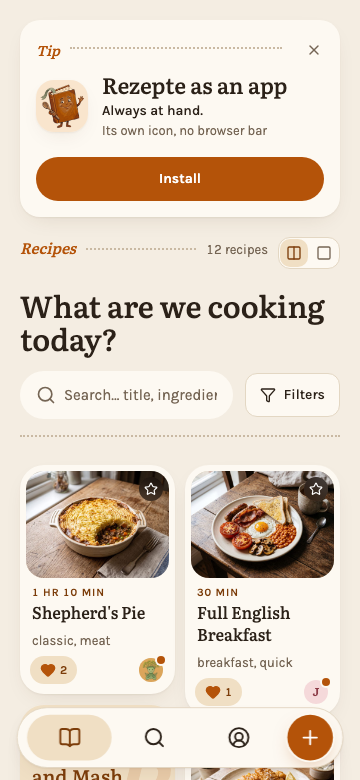
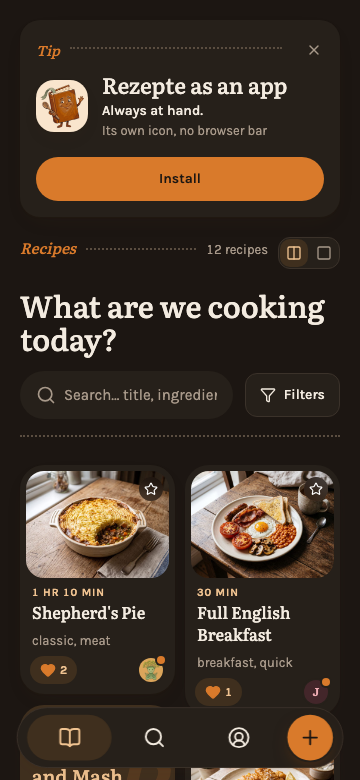
The banner is only the first offer. These do the same:
- The Rezepte as an app card in Settings, with an Install button.
- Install app in the account menu behind your initial on a desktop, and in the "You" sheet on a phone.
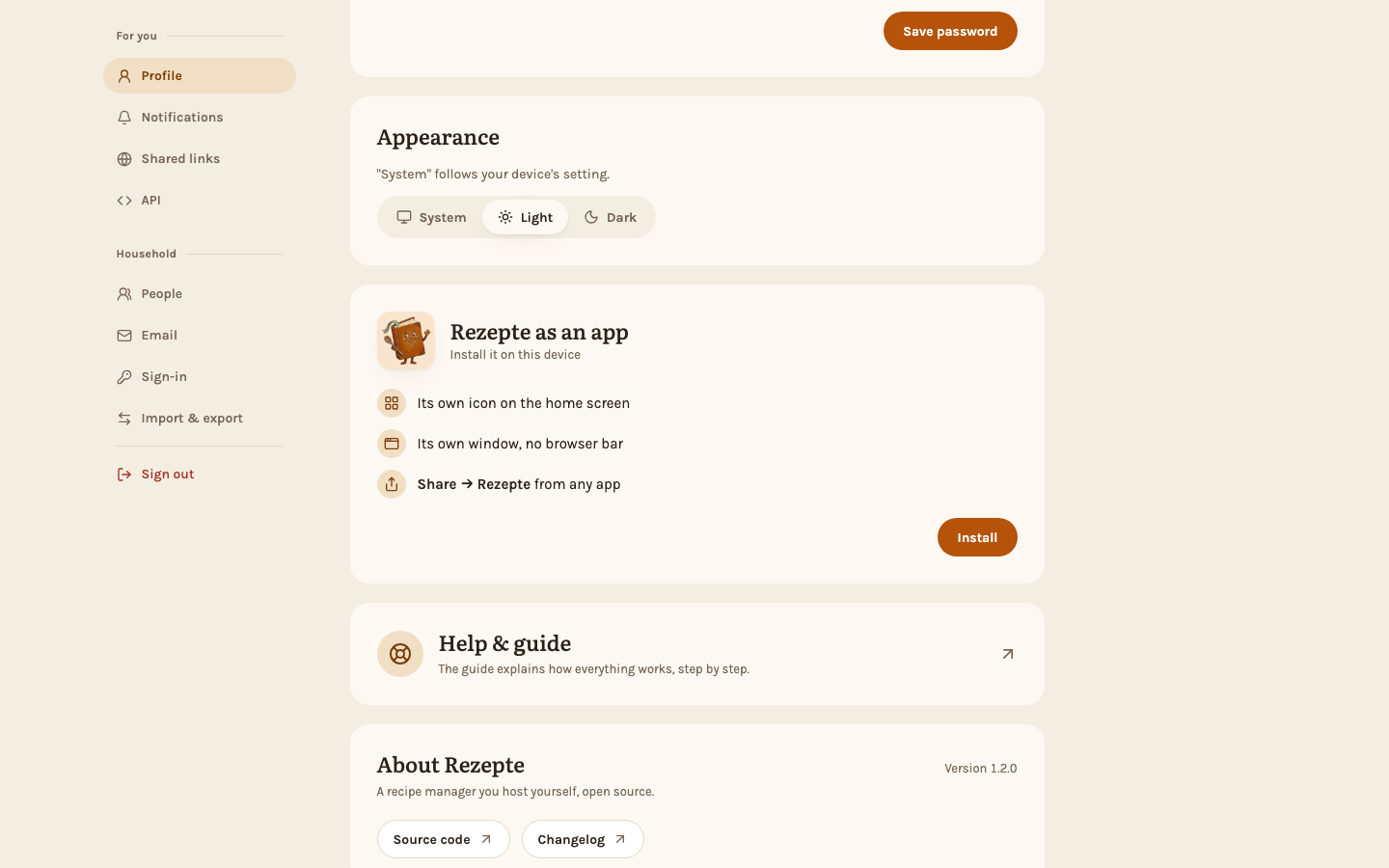
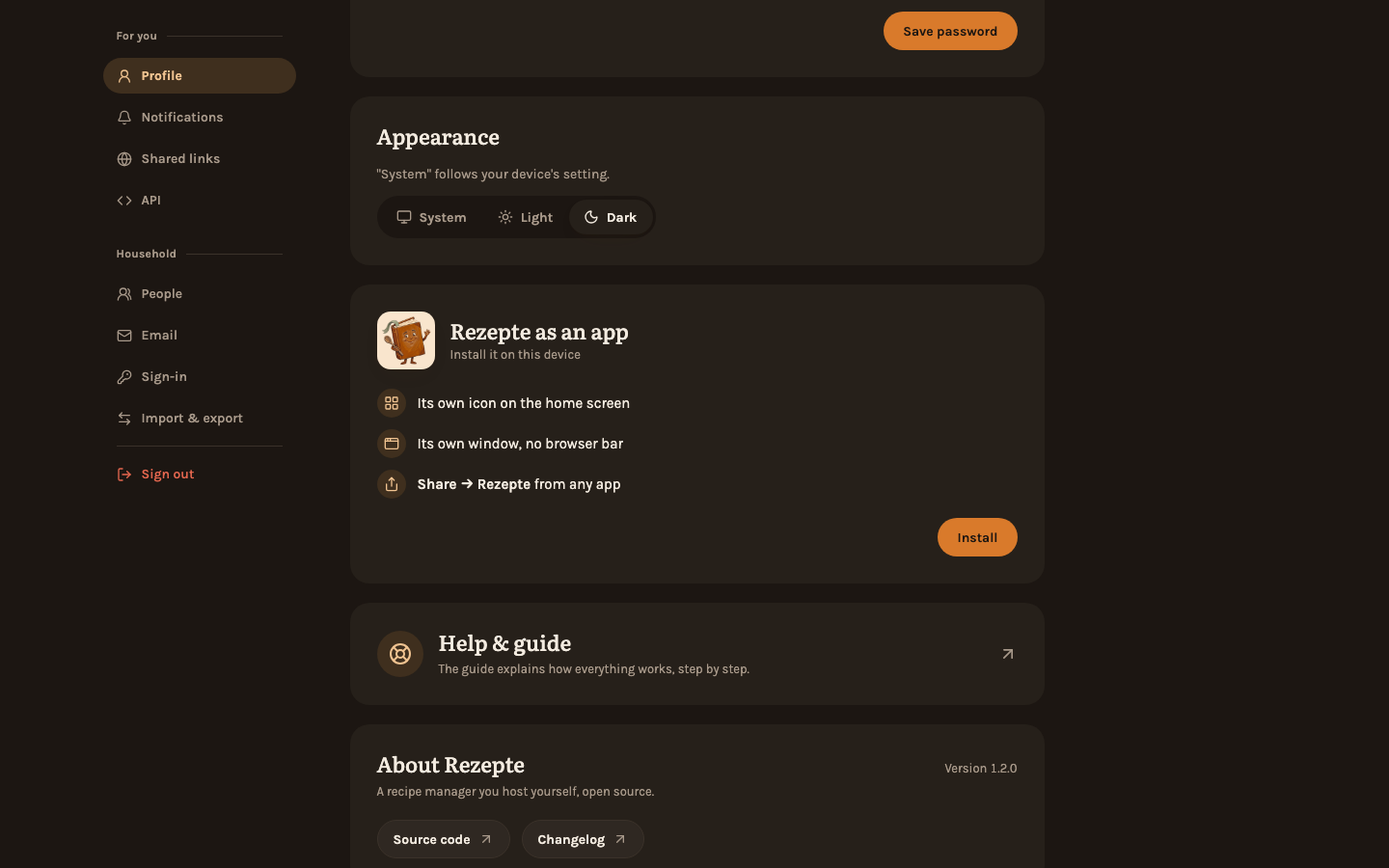
None of them shows once Rezepte is installed, or when your browser does not offer an install. Chrome and Edge do; Firefox on a computer does not. On an iPhone, Safari cannot tell whether Rezepte is already on your home screen, so the card and the menu row stay in Safari, and the note stays until you hide it with the ×; none of them shows inside the installed app.
Inside the installed app, the overview offers push notifications instead: a note headed Tip, "Never miss a thing", with Turn on notifications. On an iPhone or iPad, push works only in the app on the home screen, not in Safari.
iPhone and iPad
Safari has no install button, so Rezepte shows you the three steps instead: the card lists them, and Install in the note or the "You" sheet opens them. An iPad gets the card and the sheet, but no note.
- Tap Share at the bottom of Safari.
- Choose Add to Home Screen.
- Tap Add.
The app on the home screen signs in once on its own, separately from Safari, so sign in again the first time you open it.
Share to Rezepte
Once Rezepte is installed on Android, or in Chrome or Edge on Windows or ChromeOS, it shows up in the system's share menu. Share a recipe page from your browser, or a link from a chat, and choose Rezepte: the import dialog opens with the link in its field, and Import reads it; you then check the draft as with any import. If you are signed out, you sign in first and the dialog opens after that. If you are in the middle of editing a recipe, Rezepte first asks whether to discard your changes; Keep editing drops the share instead.
This needs Rezepte installed from Chrome (see above); a shortcut from Brave or Firefox is not in the share menu. Installed from Chrome, Rezepte is in the share menu of every app, including other browsers.
Anywhere else, on an iPhone or iPad, a Mac or Linux, Rezepte does not appear in the share menu, so paste the link into the import dialog as usual.
Shortcuts
Press and hold the app icon (Android), or right-click it (desktop), for three shortcuts: Import, New recipe and Favorites. Their names follow the language your instance is set to, not your own choice in Settings.
HTTPS is required
Browsers install a web app only from a secure address, so Rezepte offers nothing on plain HTTP, except on localhost. If it runs behind a reverse proxy with TLS, you are set. The owner sees a card in Settings that says so while the instance is on HTTP; other members see nothing.
Remove the app
Remove Rezepte like any other app: press and hold its icon and choose to remove or uninstall it, or, on a computer, choose Uninstall in the app window's menu. Your account and recipes stay on the server.