
Cook mode
A full-screen, step-by-step view for cooking at the stove
Start cooking
On a recipe's detail page, click "Cook mode" in the top bar on desktop. On a phone, "Start cook mode" is the wide button right under the servings; once you have scrolled past the photo, a round chef's-hat button in the header at the top does the same.
Move through the steps
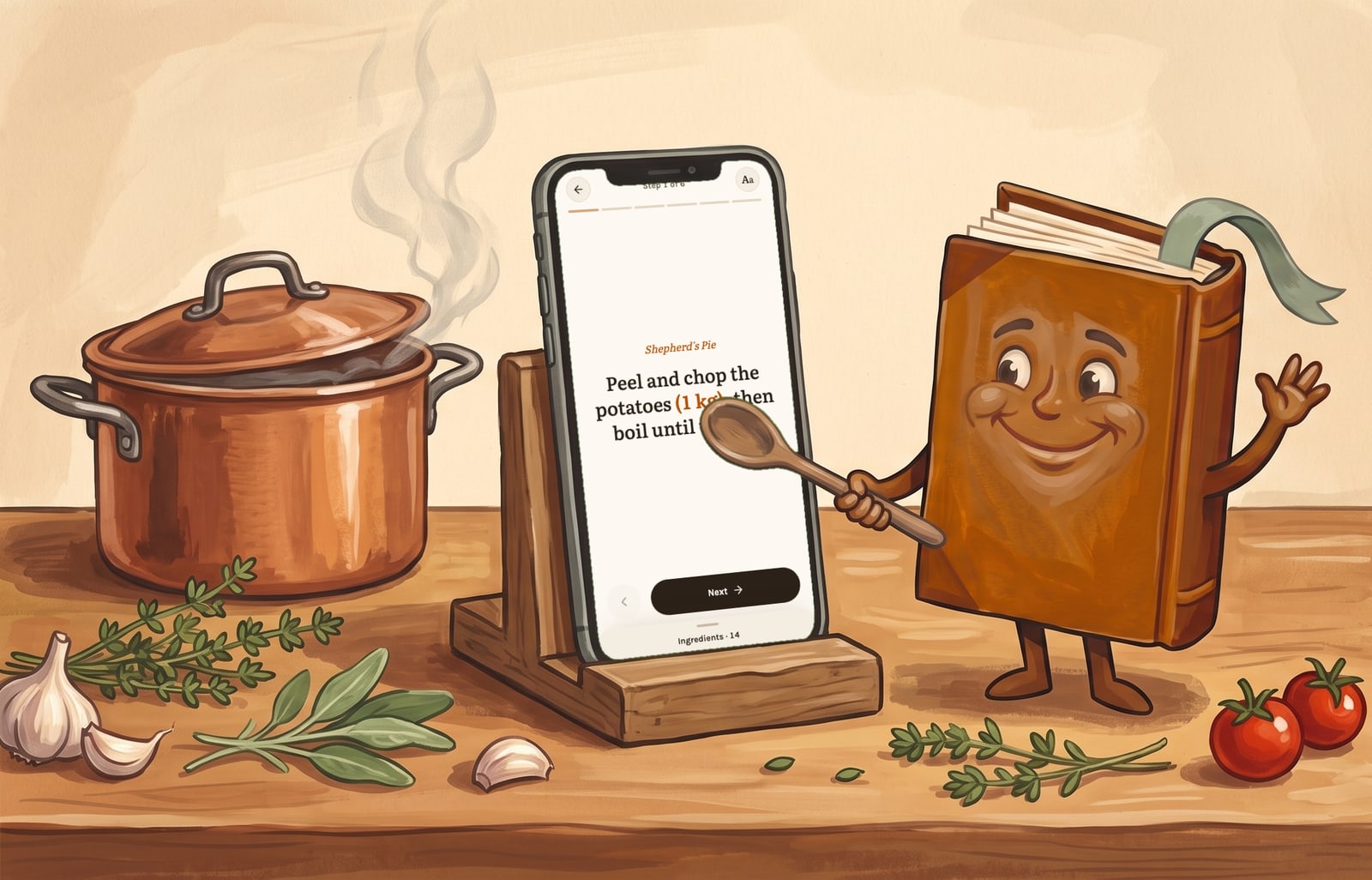
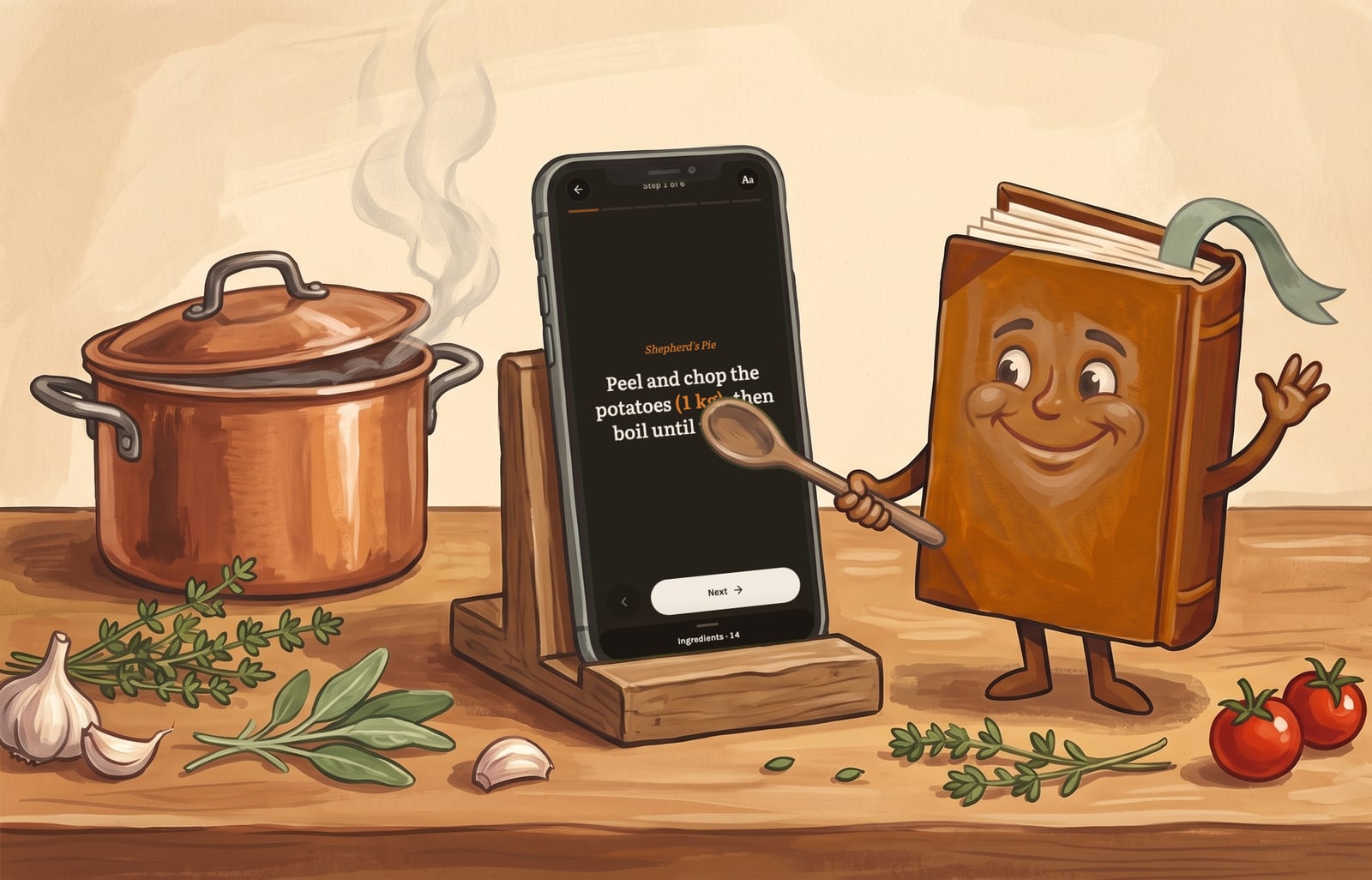
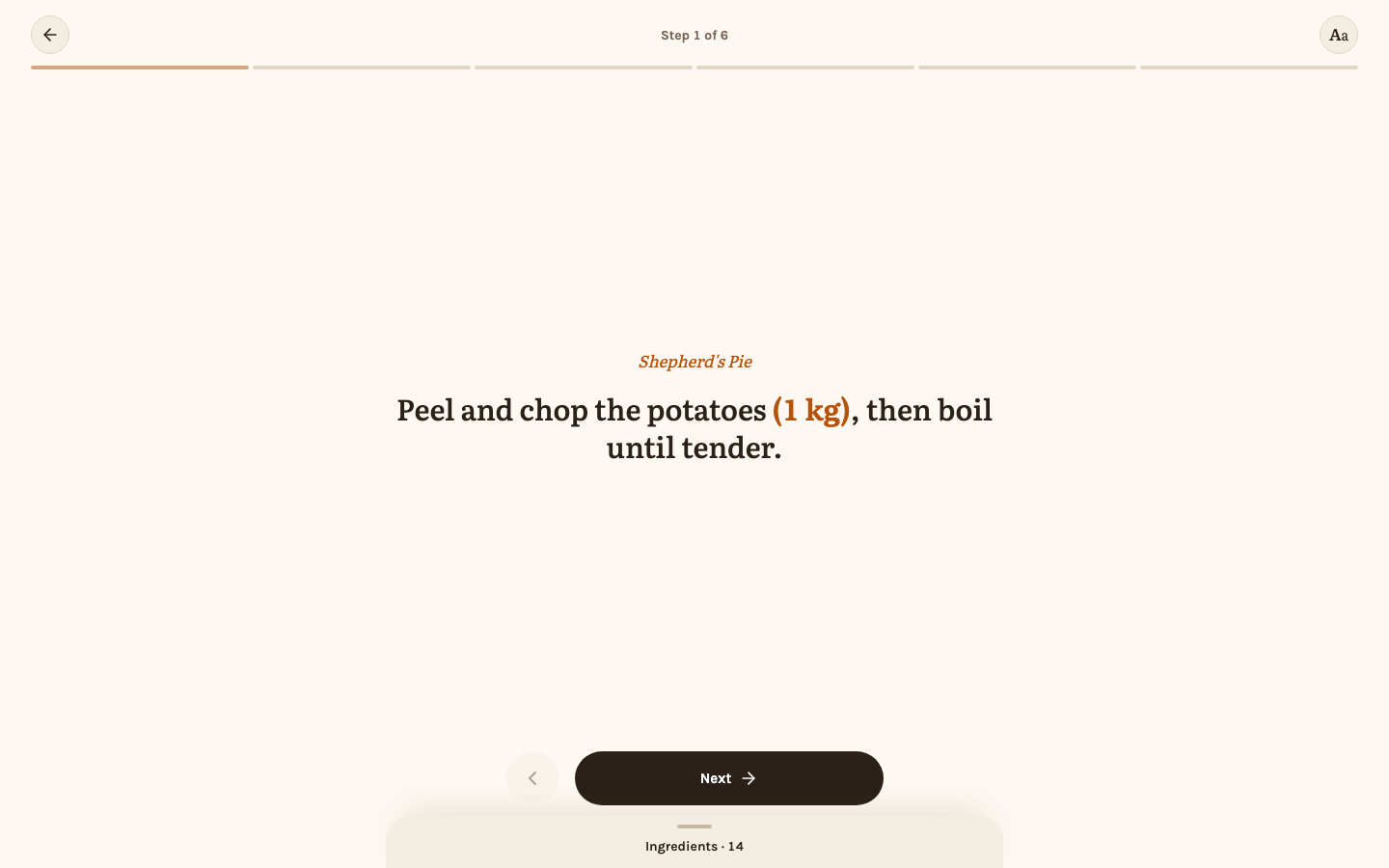
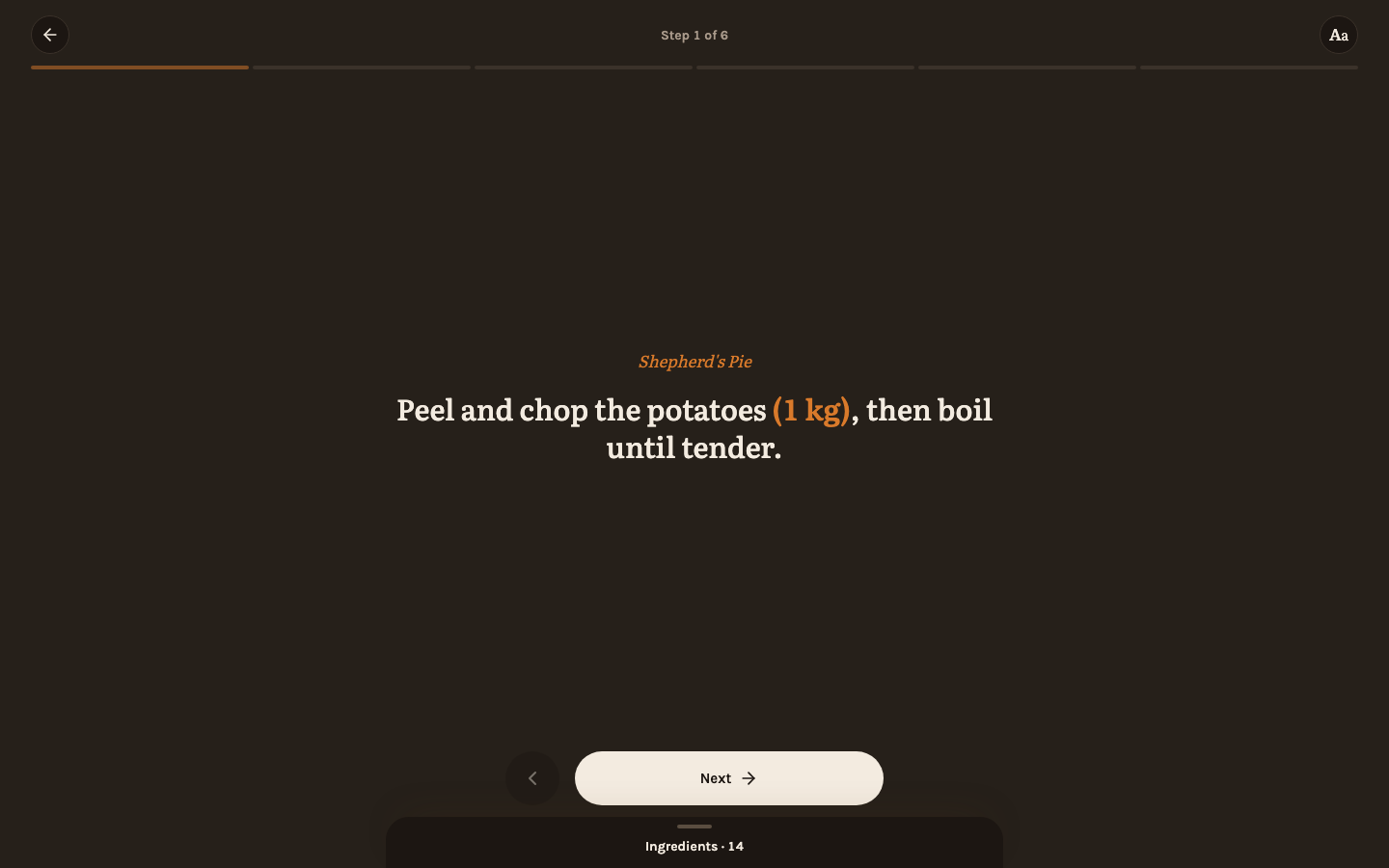
One step shows at a time, in large type. Swipe left/right, use the on-screen buttons, or the ←/→ arrow keys to move between steps; a progress bar at the top shows how far along you are. "Done" on the last step returns to the recipe. Where a step's wording was linked to an ingredient in the editor, that ingredient's quantity shows right after it in parentheses — "onion (1)" — scaled to whatever servings you chose, so the amount is there without leaving the step to check the ingredient list. Durations marked in the editor — "25 minutes" — are buttons with a small clock and a ▶, so you see where a step waits and that a tap starts its timer; see Recipes.
Run timersNew
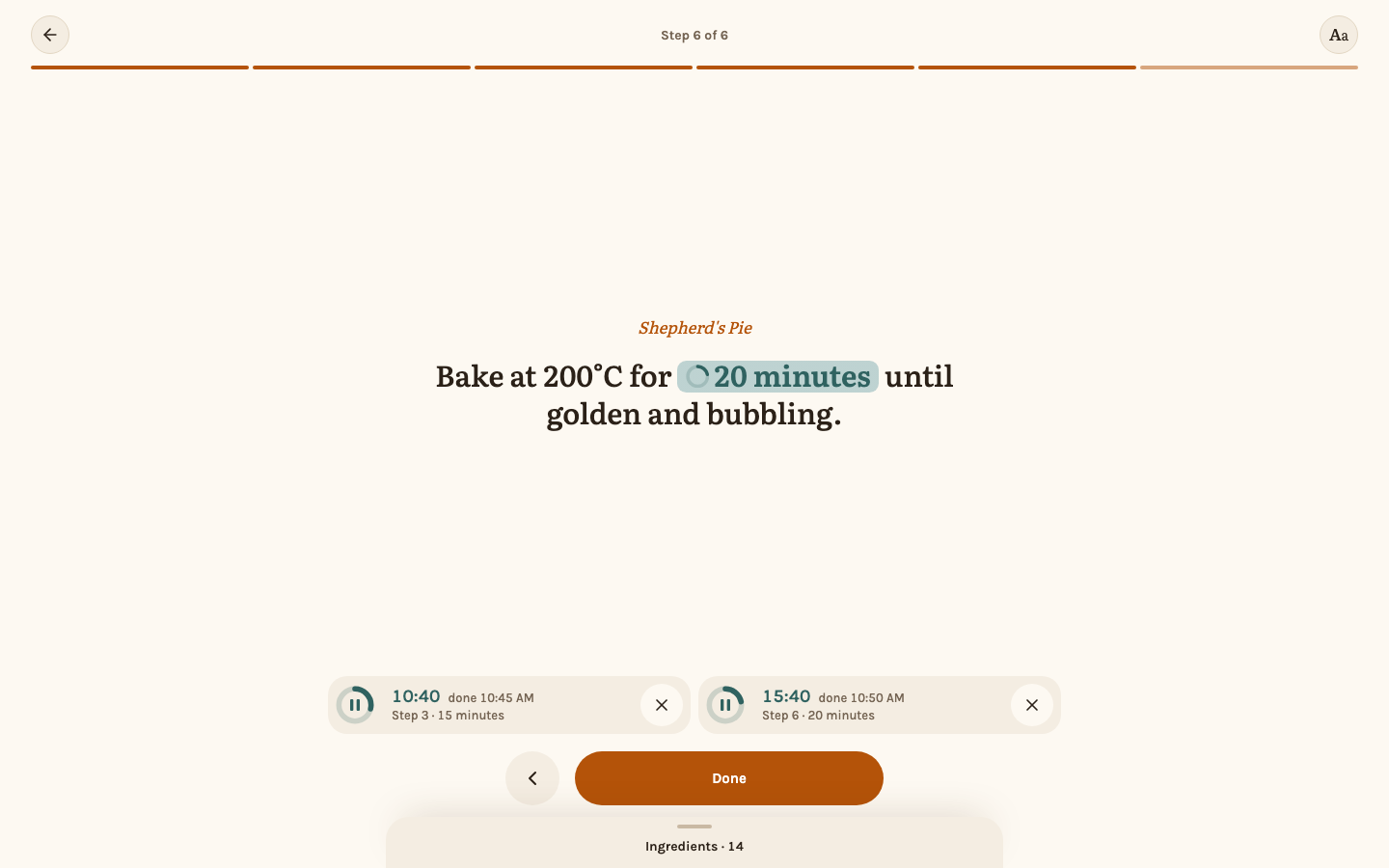
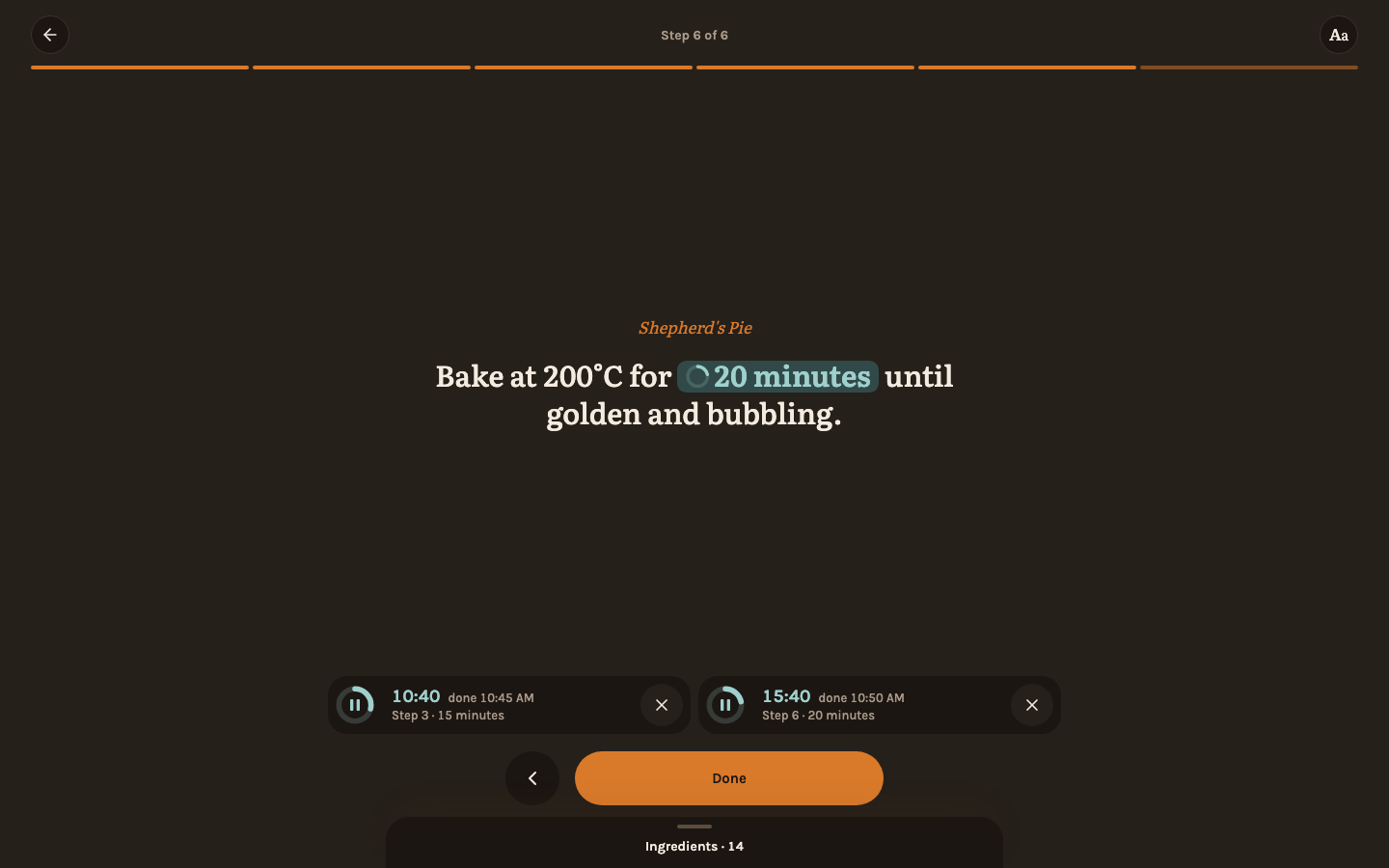
Tap a duration — "20 minutes" — to start a timer for it. Each marked time has its own timer, so tapping one that already runs starts nothing new, and timers of different steps, or of different recipes, run side by side. A duration given as a range — "20 to 25 minutes" — runs on the shorter time; check then and add more if needed.
Running timers sit above the "Next" button. On a phone they fold into one capsule showing the timer with the least time left, paused or not; tap it to see all of them, each with its remaining time and the clock time it ends. Tap a timer's ring to pause it (the ring shows ⏸ while it runs and ▶ while it is paused) and again to resume it, ✕ to stop it, or its name to go to its step.
When a timer ends, an orange "Done" banner appears under the progress bar, its bell swinging, and the phone chimes (and vibrates, where it can) until you tap "Off". After about two minutes the sound stops by itself; the banner stays until you turn it off.
The first time you start a timer, the browser asks whether Rezepte may show notifications (unless you already enabled push on this device); allow it once, and a timer that ends while Rezepte is in the background or the phone is locked shows a notification that opens its step. While Rezepte is in front of you, the banner and the chime are enough and no notification sounds. If notifications cannot work on this device, a short line under the timers says "Notifications only while Rezepte is open".
Timers keep running when you change steps, leave cook mode or reload the page. Outside cook mode the timer with the least time left shows at the bottom of a phone's screen, above the menu, and at the bottom right on a computer; tap it to see every timer, where you can pause or stop one or tap its name to go back to its step.
Cook mode keeps the step you are on in the page's address, so a reload or a bookmark opens that step again.
Resize the text
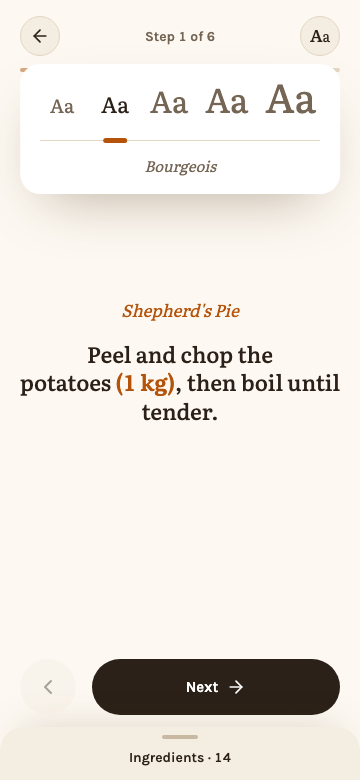
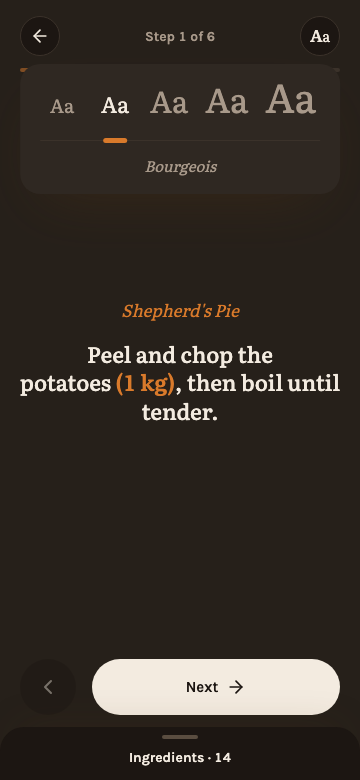
A long step can fill more than a phone screen. The "Aa" button in the header opens a row of five type sizes, from small enough to fit a long step to large enough to read from across the kitchen; tap one and the step is set in it at once. The size holds for every step until you leave cook mode, and the next time you start cooking it is back at the default.
When a step is still taller than the screen, the recipe's name above it steps aside, the text fades out where more of it follows, and you can scroll it. "Whole step" at the bottom of the text opens it on its own: only the text, the "Aa" button and your timers, with the rest of cook mode out of the way. ✕ or Esc takes you back to the step.
Check ingredients
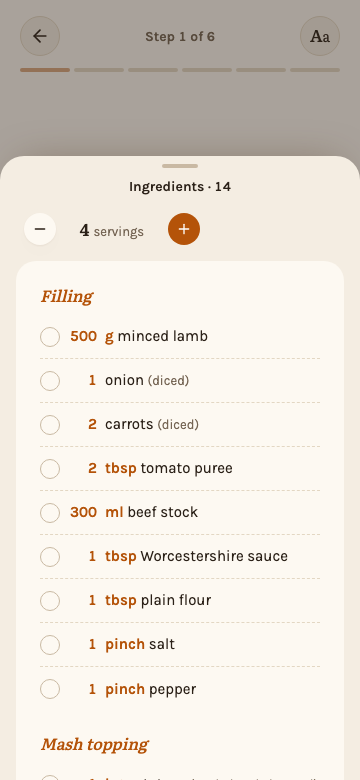
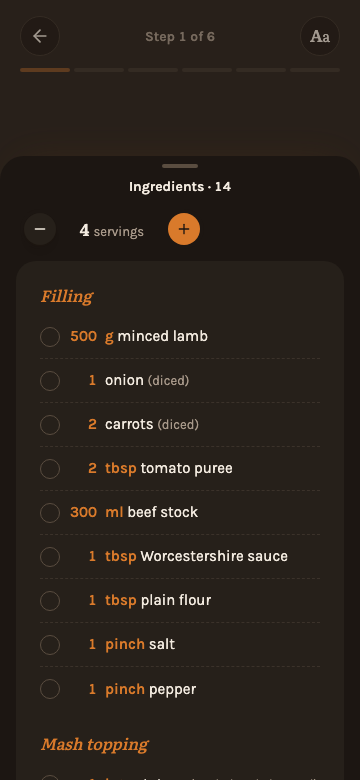
Tap the "Ingredients" bar at the bottom of the screen (it shows how many there are) to open the ingredient list without leaving cook mode. It is scaled the same way as on the detail page, using whatever servings you last chose (see Servings), and carries its own −/+ stepper and "Reset", so you can change the servings right there. The checkboxes are the same ones as on the detail page: an ingredient checked off there is checked here, and the other way around. Escape, the handle at its top or a tap beside it closes the list again; while it is open, the arrow keys do not change the step.
Good to know
While cook mode is open, the screen is kept from sleeping (a "Screen stays on" note appears when this is active). Escape, or the back arrow in the header, leaves cook mode and returns to the recipe.
Keeping the screen on relies on the browser's Wake Lock API, which requires a secure context. Over plain HTTP on a local network (no TLS) the browser silently does not grant it, so the screen can still turn off — see Reverse proxy for adding HTTPS.
A timer lives only in the browser that started it: another phone or computer of your household does not see it. Signing out stops every timer, so the next person to sign in on a shared device starts clean. After a reload, a timer that ended while the page was closed shows as done, but the browser plays its sound only after your first tap on the page.
Notifications need a secure (HTTPS) address; over plain HTTP the timer tells you only while the page is open — see Reverse proxy. On an iPhone or iPad they work only in the app added to the home screen (iOS 16.4 or later), not in Safari itself; see Install the app. If you declined the browser's question, Rezepte does not ask again: allow notifications for the site in the browser's settings. Signing out stops the notifications for this device along with the timers. Send test under Settings → Notifications shows whether a notification reaches this device at all.
A recipe with no steps shows a short message instead of the step view.