
Single sign-on
Let people sign in with Google or your own identity provider instead of a password
Rezepte can offer one OpenID Connect provider next to its own passwords: Google, or one you run yourself such as Authelia, Authentik, Pocket ID, Keycloak or Dex. The login page then shows "Continue with …" under the password form.
What it does and what it does not
- It only signs in people who already have an account. Somebody connects their provider account to their Rezepte account first, from their profile or through a setup link. A provider account nobody connected gets "not connected to Rezepte yet", never a new account. That is what makes Google safe to use: anybody can have a Google account, and none of them gets into your household by it.
- Accounts are matched only by the provider's own account ID, never by email address.
- One provider per instance. GitHub, Facebook and other providers that are not OpenID Connect do not work.
- Roles stay in Rezepte. The provider says who somebody is; what they may do is still decided under "People".
- Signing out of Rezepte ends the Rezepte session only, and signing out at the provider does not sign anybody out of Rezepte.
- If the provider is down, passwords keep working. Rezepte starts without contacting it; it first asks the provider when somebody presses the button, or when the owner saves the settings, to check the address.
Configure it
Register Rezepte at your provider as a web application with this redirect URI:
https://<your Rezepte address>/api/v1/auth/oidc/callbackYou can then tell Rezepte about the provider in two ways. REZEPTE_PUBLIC_URL must be set either way: it is the address people open Rezepte at, exactly as in the browser, without a path, and Rezepte builds the redirect URI from it rather than from the request, so it must match what you registered at the provider (see Configuration). With an https:// address, the short-lived cookie that carries a sign-in to the provider and back is only ever sent over HTTPS, whatever REZEPTE_SECURE_COOKIES says.
In RezepteOwner only
The owner opens Settings → Sign-in. The card shows the redirect URI with a "Copy" button, so you can paste it at the provider. "Set up sign-in" asks for the provider's Issuer URL, the Client ID, the Client secret if the provider issued one (leave it empty for a public client), and the Button name such as "Google", which the login button then says: "Continue with Google". On "Save", Rezepte checks that an OpenID provider answers at the issuer address, and says so under the field when none does. The change applies at once, without a restart.
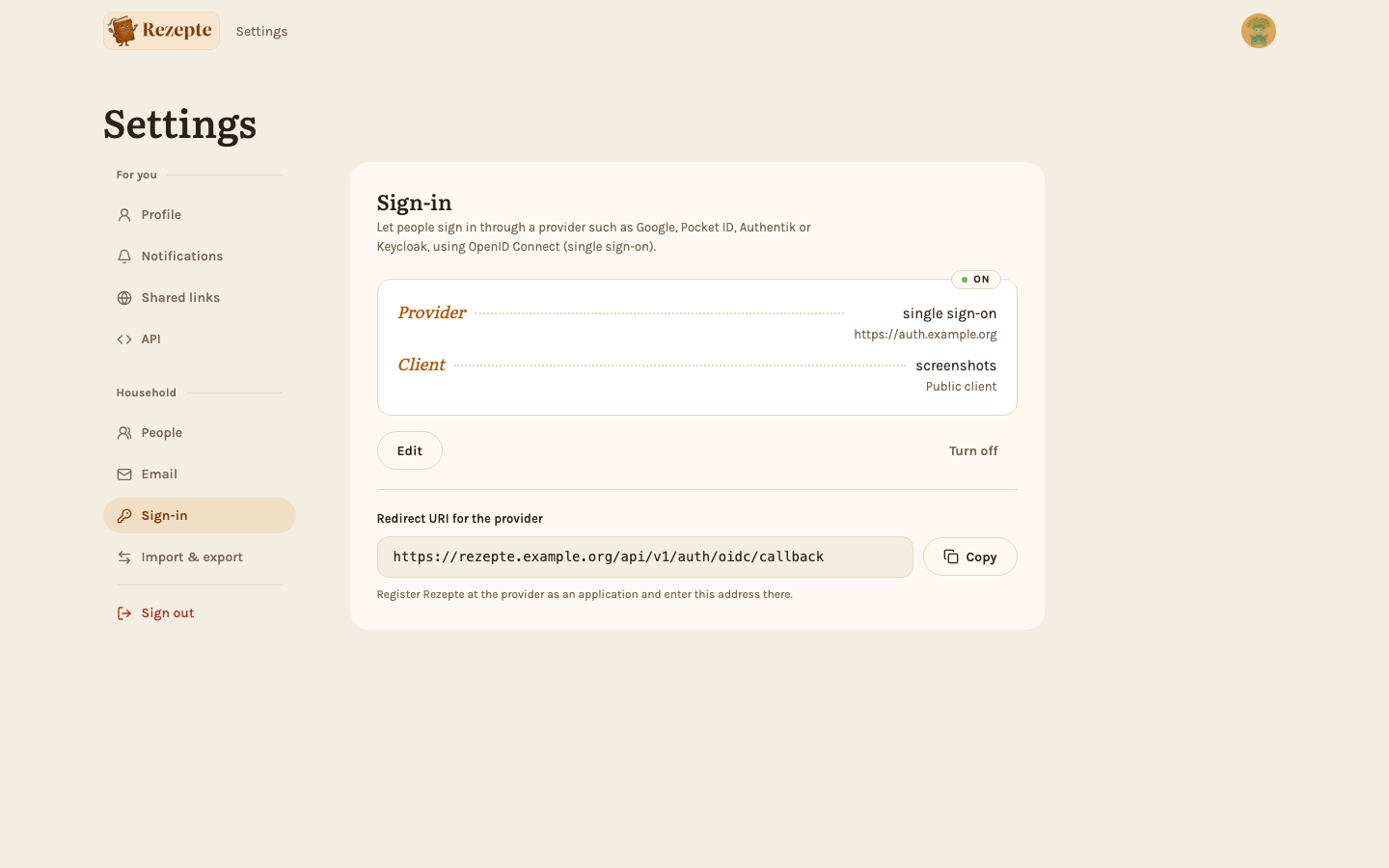
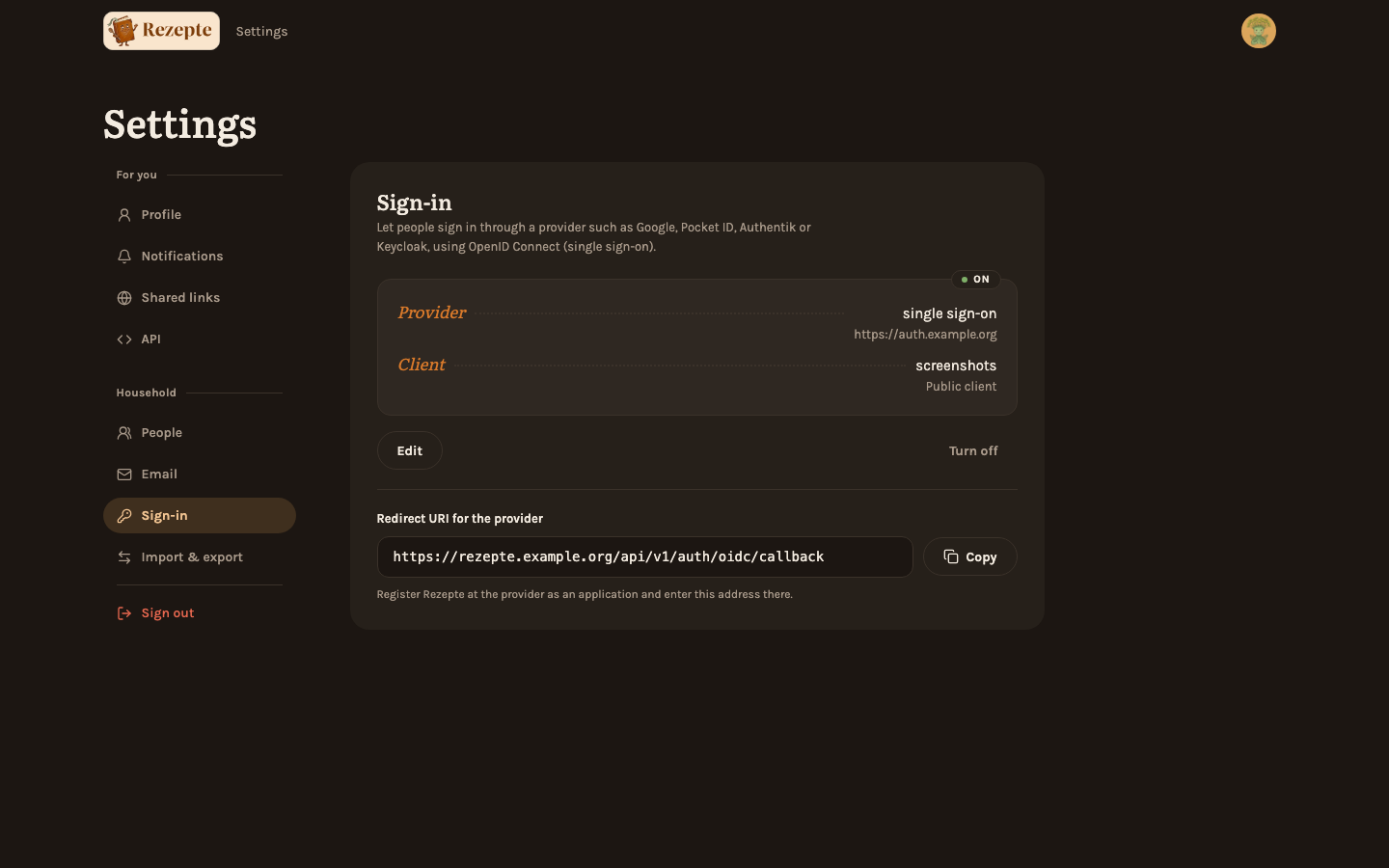
A saved secret stays when you leave the field empty, but only for the same issuer and client ID; for another provider, type its secret again. "Edit" changes the settings, and "Turn off" removes them, with the secret. Turning off always asks first. Switching to another provider asks first when people are connected, and so does turning off: they can no longer sign in with the provider afterwards, and anyone without a password needs a setup link. Their connections stay saved and apply again if you set the same provider up again. The dialog lists who they are: open "connected accounts" to see each person, sorted into those without a password, who need a setup link, and those whose password keeps working.
With environment variables
Set these variables instead, as plain environment variables or in docker-compose.yaml's environment: (see Docker):
REZEPTE_PUBLIC_URL=https://rezepte.example.org
REZEPTE_OIDC_ISSUER=https://accounts.google.com
REZEPTE_OIDC_CLIENT_ID=<client ID>
REZEPTE_OIDC_CLIENT_SECRET=<client secret>
REZEPTE_OIDC_NAME=Google
The variables win over anything saved in Rezepte and lock the card: it then reads "Set by the server" and cannot be changed there. Change the variables and restart Rezepte instead. REZEPTE_OIDC_NAME is what the button says; without it the button reads "Continue with single sign-on".
Google keeps these settings in the Google Auth Platform of the Google Cloud Console. Pick or create a project in the bar at the top first; the links below then open the right page of it.
- On the overview, start the setup: the app name (for example "Rezepte") and your email address.
- Under Audience, choose "External" and press "Publish app". Rezepte asks only for
openidandemail, which Google does not review, so publishing needs no verification. A published app lets any Google account reach Rezepte's sign-in, and that is safe: only an account somebody connected gets in (see above). Leaving the app in "Testing" works too, but then only the Google accounts you list as test users can sign in with Google at all. - Under Clients, create a client of type "Web application" and add
https://<your Rezepte address>/api/v1/auth/oidc/callbackas an authorized redirect URI. - Copy the client ID and secret into Settings → Sign-in, with
https://accounts.google.comas the issuer and "Google" as the button name. With environment variables, setREZEPTE_OIDC_CLIENT_ID,REZEPTE_OIDC_CLIENT_SECRET,REZEPTE_OIDC_ISSUER=https://accounts.google.comandREZEPTE_OIDC_NAME=Googleand restart Rezepte.
How people connect
- An existing account signs in with its password once, opens "Settings", and presses "Continue with …" on the "Sign-in" card. From then on the button on the login page signs them in. The same card disconnects it again — but only once the account has a password, so nobody locks themselves out. An admin can also disconnect someone from "Settings" → "People" (see People), password or not, and then send them a setup link.
- A new account gets a setup link as usual (see People). The page the link opens offers "Continue with …" above the password form, so the person can pick the provider instead of a password.
If the login page says the account is not connected yet, that person has not connected it: sign in with the password and connect it, or ask an admin for a setup link.